QRmenuGO
How it works
From one photo to a QR menu
Follow four steps: photograph, upload, review and use your QR.
- 1
Photograph your menu
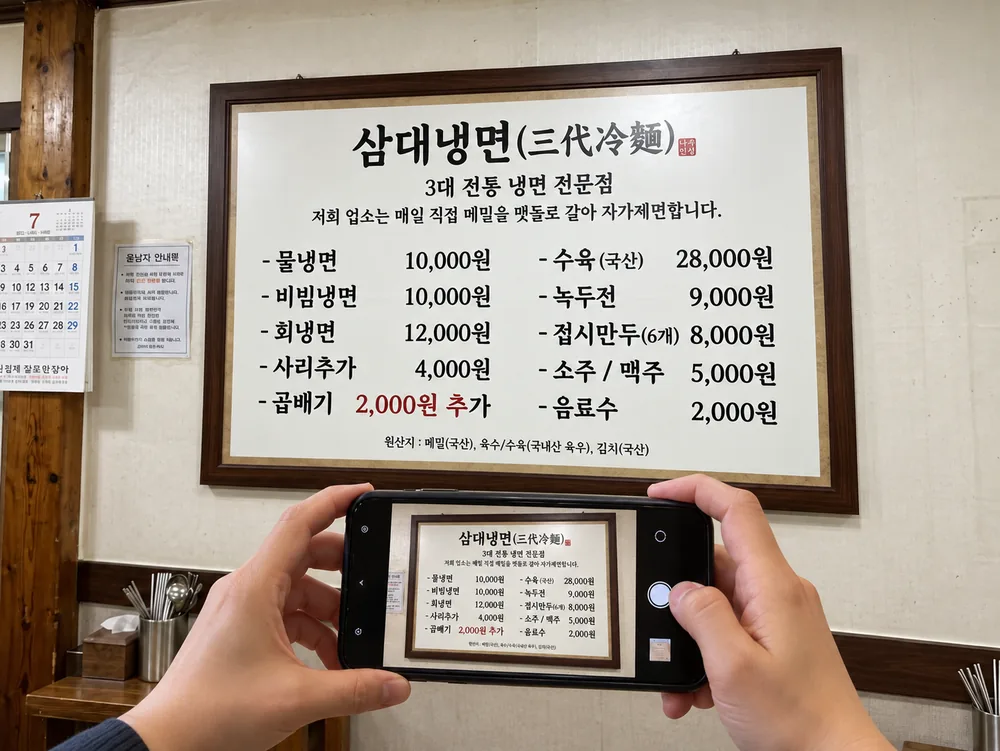
AI-staged illustration Fit the whole menu in the photo, keeping dish names and prices clear.
Avoid glare, blur and anything covering the text.
- 2
Upload the menu photo
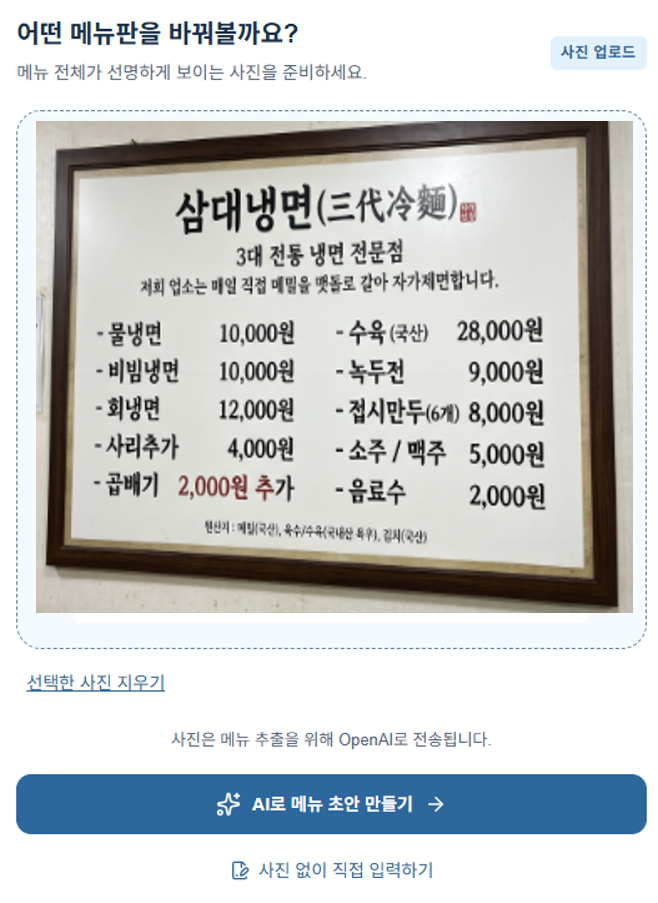
Upload screen example in Korean Select your photo and press “Create a menu draft with AI” to generate a draft. Check the recognized names and prices.
Upload a JPG, PNG or WebP photo, up to 15MB.
- 3
Review and style your menu
Review menuSamdae Naengmyeon sample menu
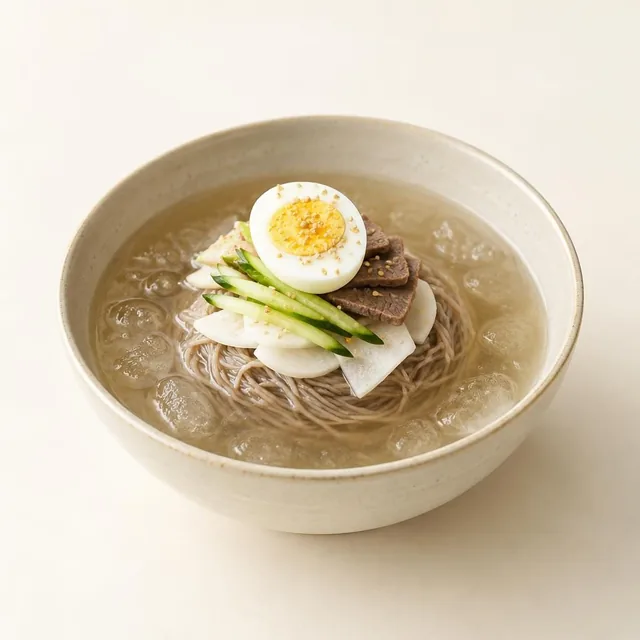 Mul-naengmyeon (cold noodle soup)
- 10,000원
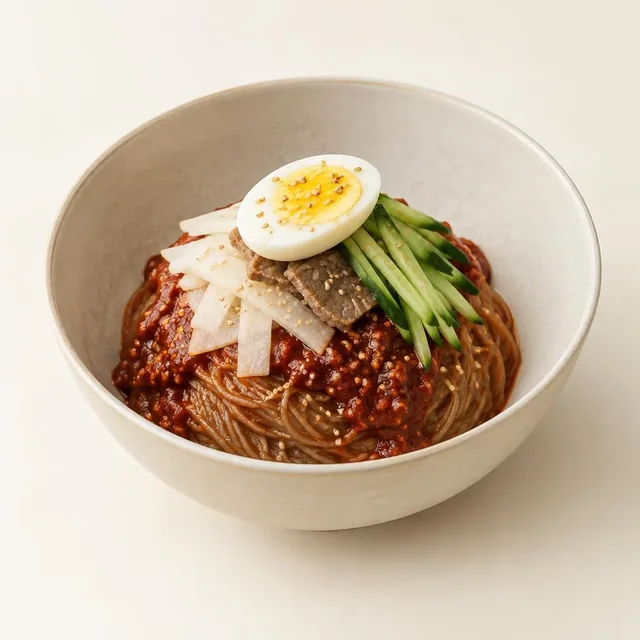 Bibim-naengmyeon (spicy mixed cold noodles)
- 10,000원
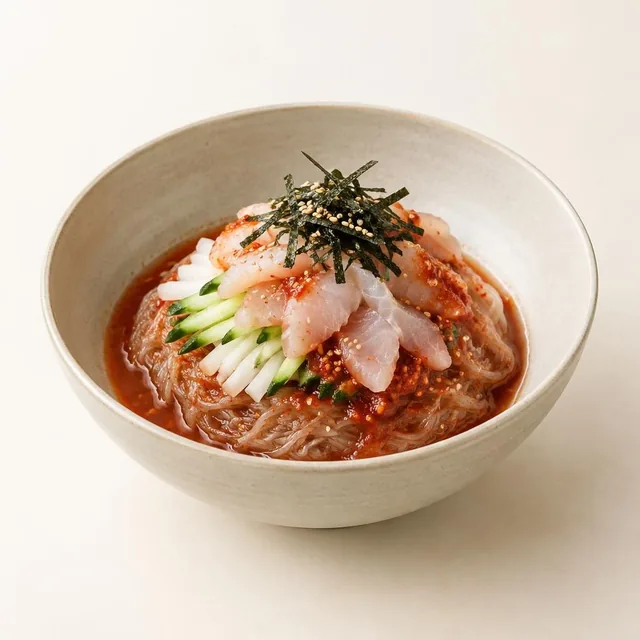 Hoe-naengmyeon (fish-topped cold noodles)
- 12,000원
Samdae sample menu preview Check names, prices, extras and translations in 12 languages, then publish. Themes, table QR codes and order settings are optional.
Check AI photos and descriptions against your actual menu before publishing.
- 4
Show your menu with a QR
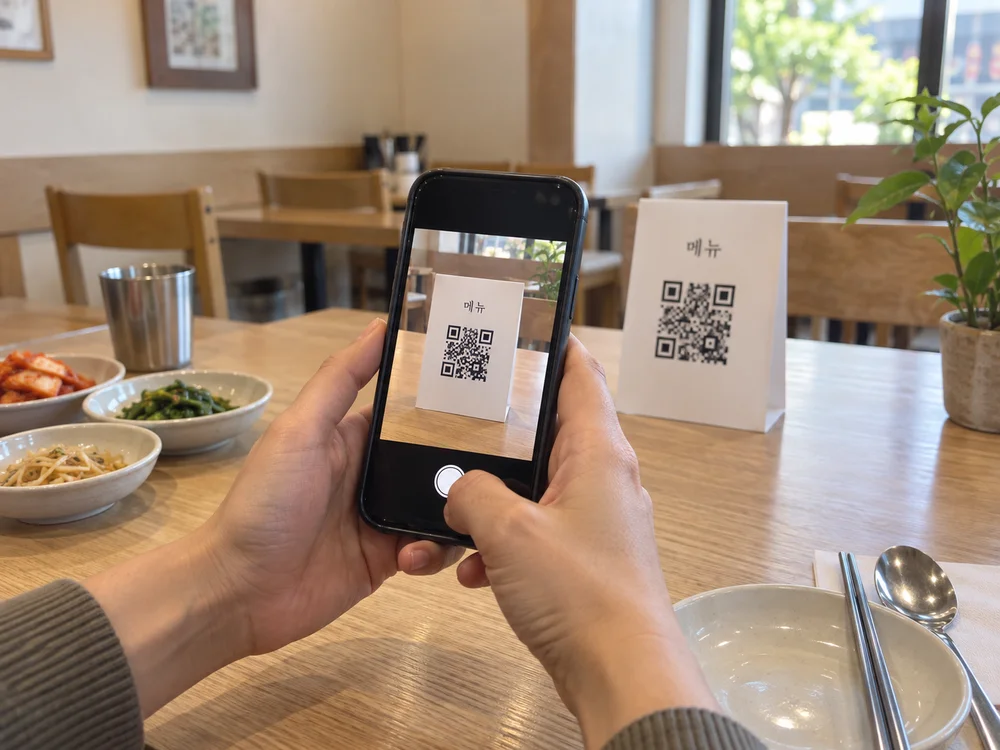
AI-staged illustration After publishing, download the basic QR as PNG or SVG. Print it or save a PDF from the print screen. Customers scan it with their camera to view the menu.
The QR in this photo is staged. Find the working sample QR in the demo.
Photos are AI-staged illustrations; the screens use the Samdae sample menu.
What’s on your menu?
Start a draft with a photo or enter it directly. Continue editing saved menus below.